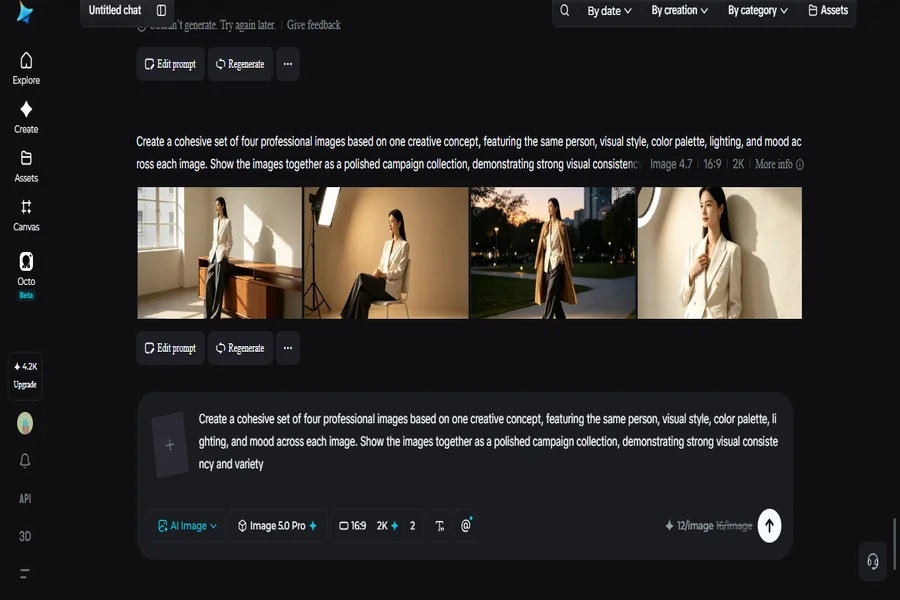
The great strength of one idea can be multiplied by a full visual ensemble. Instead of designing different images for each post, campaign or presentation, you can prepare a set of several images following a similar creative approach. This process can be sped up with an AI image generator, which lets you create various images that emphasize the main idea. Whether you have one concept or the most advanced image generation model, Dreamina’s newest and most powerful Seedream 5.0 Pro allows you to develop one concept into a flexible image set with a consistent visual identity.
Begin with one idea to develop
All images must have a central idea. This could be a fashion campaign, a product launch, a travel concept or a character story. When creating variations, make sure to determine what will link each picture together first.
Consider the theme, tone, color palette, context and target audience. These are your creative focus points. There is no need to worry about the collection becoming random, once established, you can modify individual elements without any trouble.
Put together a visual rule book!
There’s no need for a complex design document. A short list of visual rules will suffice. Determine what features will stay the same, and what features will be different, within the set. Maintain some uniformity:
- The main subject and the character of its elements
- The use of core lighting in color moods.
- How a photograph or artistic work is done.
- Unique features of the clothes or item that make it a wardrobe or product feature.
This helps to create a sense of community among each new generation.
Assign individual tasks to each picture
It is not 10 different pictures of the same thing. Assign tasks to each asset. One could be used to set up the concept, another could show the subject and the third could be used for context.
You could develop a campaign by making a hero image, close-up, lifestyle, detail shot, and a social-friendly composition. Every frame will add something to the collection, making it more useful.
See what Seedream 5.0 Pro adds
It offers a couple of features that allow Dreamina to be more flexible when it comes to creative expansion in the Dreamina’s Seedream 5.0 Pro. It features precision editing tools like point selection, lasso selection, sketch guidance and regional controls, allowing for editing of specific areas without having to rebuild the entire picture.
The intelligent layer separation allows to separate subjects, backgrounds, text, and effects into individual layers that can be edited. Native text generation: 14 languages supported; built-in online research helps for current visual information when a concept relies on the real world. The model also offers 2K output to create clean, detailed imagery.
Create a master image in Dreamina
Step 1: Make a text prompt and/or add a reference image
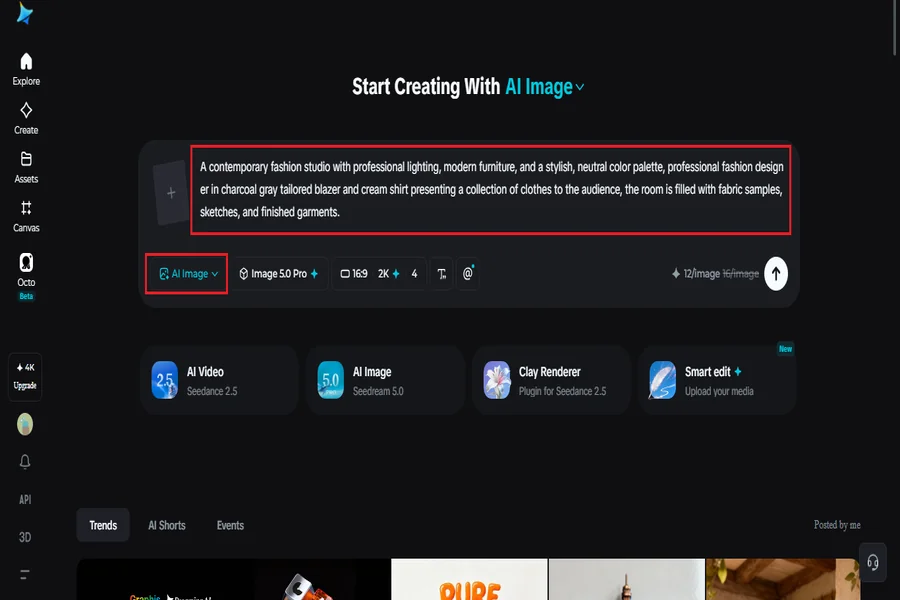
Go to the Dreamina and explain the essence of the idea in detail, along with a human figure with a suitable outfit for the creative field, environment, pose, lighting, composition and mood. A reference image may be added when more consistency is desired.
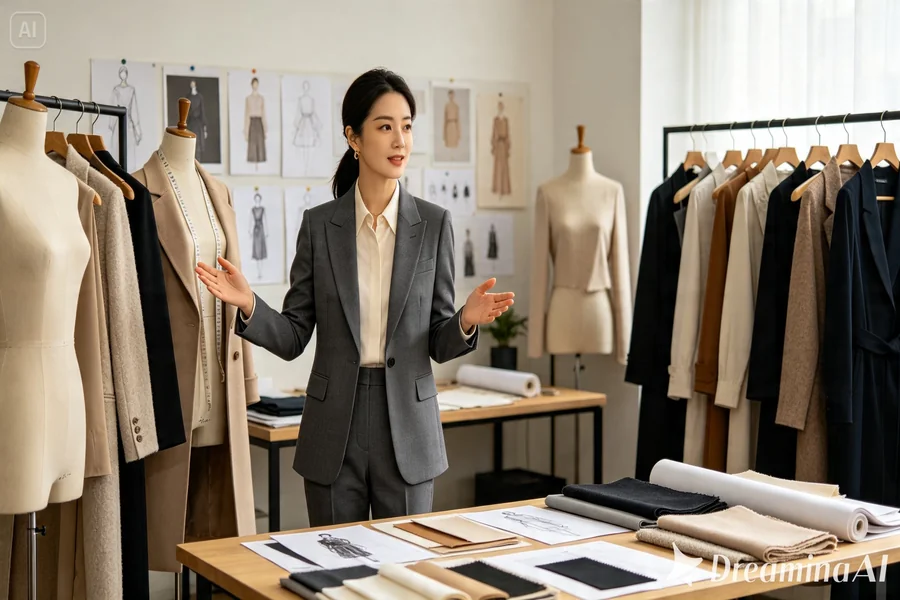
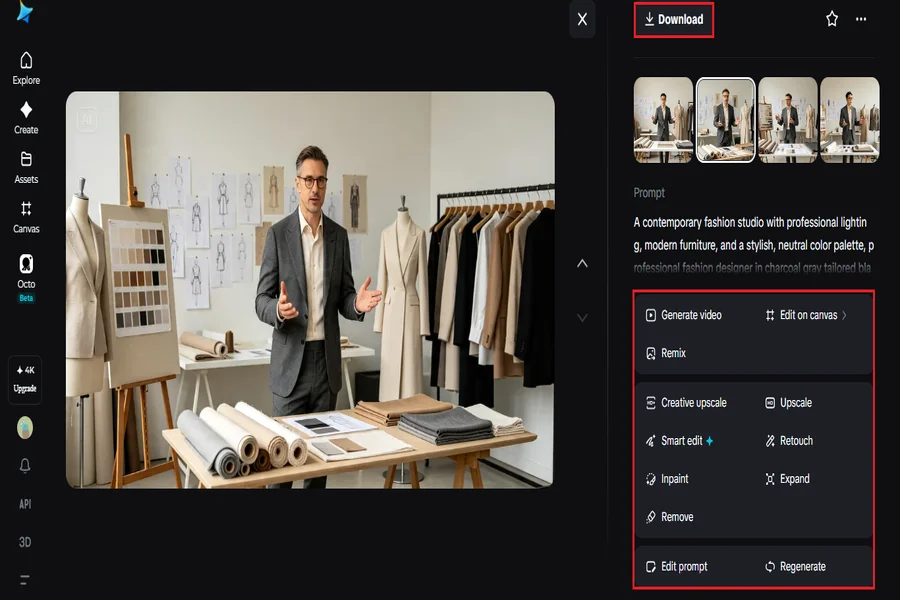
Imagine: A contemporary fashion studio with professional lighting, modern furniture, and a stylish, neutral color palette, professional fashion designer in charcoal gray tailored blazer and cream shirt presenting a collection of clothes to the audience, the room is filled with fabric samples, sketches, and finished garments.
Step 2: Adjust the parameters and generate more
Select Image 5.0 Pro from Seedream 5.0 Pro as your model, then choose the aspect ratio and size based on the platform or format that you’d like to use. Test your directions with 1K and produce more detailed asset with 2K. Fix useful settings between variations, and click Dreamina’s icon to generate. Take the “master idea” and make a variation of it.
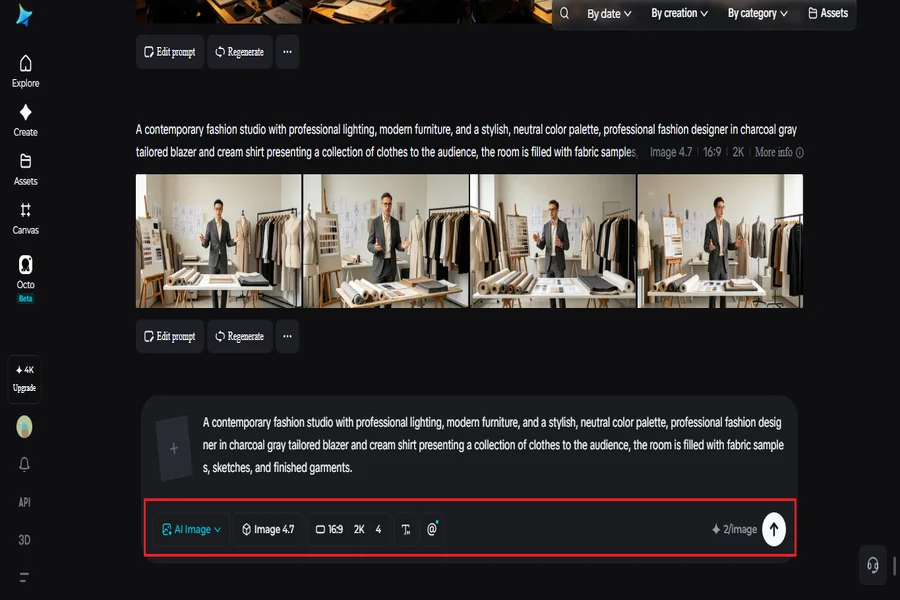
If your first image is successful, do not make too many changes all in one go. Instead, change one of the key ingredients per generation. Change the location, adjust the distance of the camera, add in a new pose, or adjust the lighting time of day. This is a controlled approach, which makes it easier to understand the reason why a variation is working and to maintain the original idea
Step 3: Customise and download the model
Fine-tune the generated image using the AI tools in Dreamina before saving it. Inpaint can fix parts of the image, expand can add space to the composition, remove can remove interference elements, and retouch can clean up small defects. Once the image is ready, click on the “Download” icon to save the completed image asset.
Create multiple forms of one thing
A coordinated image collection can be used for more than just one campaign. You can use various frames for social media posts, website sections, ads, presentations, mood boards, or creating AI videos. Seedream 2K images produced by 5.0 Pro are also good visual supports for video scenes.
The idea is to design the collection with the intention of reusing it. The wide shot can be used as a banner, and the close-ups can be posted as social media content.
Continue to develop the original concept
The best image sets are related, but not repetitive. Begin with a defined creative vision, lay some visual ground rules and then let each new image wander through a different facet of the narrative. Research help, multilingual text, layer control, targeted editing and detailed generation, high-resolution output, and making the process practical: These are all features offered with Dreamina (and Seedream 5.0 Pro).
Once you create an image as an idea, you can develop it into a visual system. That system is maintained coherently and provides enough variety to keep your crowd interested in Dreamina and Seedream 5.0 Pro.