

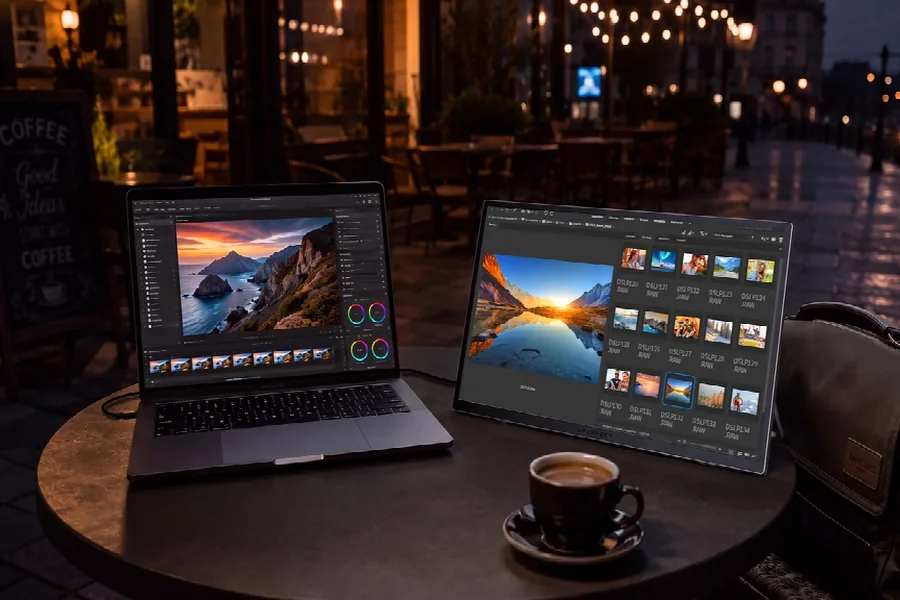
In the era of hybrid work, remote offices, and fast-paced digital tasks, screen space has become one of the most underrated productivity tools. Sticking to a single laptop screen often forces constant tab switching, window resizing, and interrupted focus—small distractions that add up to hours of wasted work time weekly. Adding a second monitor eliminates these bottlenecks, expanding your digital workspace and streamlining multitasking for office workers, freelancers, students, and digital nomads alike. This comprehensive guide walks you through the full setup process, productivity tips, and best practices to leverage an external screen, especially with flexible mobile-friendly devices like the UPERFECT display, to elevate your daily work efficiency.
Why a Second Monitor Dramatically Improves Work Productivity
Before diving into setup steps, it’s critical to understand how dual-screen setups transform your workflow. Countless productivity studies confirm that dual-monitor users complete tasks 20–30% faster than single-screen users, with reduced mental fatigue and fewer attention breaks. The core advantage lies in eliminating context switching, a major productivity killer in modern work.
Eliminate Constant Tab and Window Switching
Most daily work requires juggling multiple types of content: writing a report while referencing research data, editing spreadsheets while checking client messages, or designing graphics while reviewing feedback. With only one screen, you must repeatedly minimize, maximize, and switch windows, breaking your concentration every time. A second monitor lets you pin reference materials, communication tools, or data tables on one screen while focusing on core tasks on the other, creating a seamless, uninterrupted workflow.
Support Multi-Task Workflows for Business Scenarios
For professional business users, a dedicated business monitor serves as a game-changing workspace upgrade. It allows dedicated partitioning of work content: one screen for real-time communication (emails, meetings, team chats) and live data monitoring, and the other for focused creative, analytical, or document work. This separation of active and focused tasks ensures urgent messages won’t disrupt deep work, while important updates won’t be missed during concentrated work sessions.
Adapt to Flexible Hybrid Work Environments
Traditional fixed desktop monitors are limited to office desks, failing to meet the needs of modern hybrid workers who work from homes, cafes, co-working spaces, or travel sites. A lightweight portable monitor solves this pain point perfectly, bringing dual-screen productivity to any location without bulky equipment.
Step-by-Step Portable Second Monitor Setup (Windows & macOS)
Setting up a second portable monitor is plug-and-play for most modern devices, with no complicated software installation required. Below is a detailed, universal setup guide compatible with both Windows and Mac systems, suitable for all mainstream portable display devices.
Step 1: Choose the Right Connection Cable
Portable monitors mainly support two mainstream connection modes, and you can select based on your laptop’s interface. The USB-C connection is the most convenient option for modern laptops with full-featured USB-C ports supporting DisplayPort Alt Mode. A single USB-C cable can transmit video signals and supply power simultaneously, eliminating messy extra power cords. For older laptops without functional USB-C ports, use an HDMI cable for video transmission and a separate USB cable for monitor power supply. The UPERFECT portable monitor is equipped with dual USB-C and HDMI interfaces, fully compatible with all laptop models for maximum connectivity flexibility.
Step 2: Complete Hardware Connection
Place the portable monitor on a stable flat surface beside your laptop, adjust the built-in stand to a comfortable viewing angle (15–30 degrees is optimal for eye protection). Plug one end of the selected cable into the portable monitor’s interface and the other end into your laptop. The monitor will automatically power on and enter standby detection mode within 3–5 seconds.
Step 3: Adjust System Display Settings
After hardware connection, adjust system settings to enable extended display mode (the core of productivity improvement). For Windows users: Right-click the desktop, select Display Settings, find the Multiple Displays option, and choose Extend These Displays. Avoid the Duplicate Displays mode, which simply mirrors content and provides no extra workspace. Drag the screen icons in the setting interface to match your actual monitor placement for smooth mouse movement between screens.
For macOS users: Open System Settings, enter the Displays module, click the Arrange tab, uncheck Mirror Displays, and adjust the screen layout. You can also set the primary display to determine where new windows and the taskbar appear.
Practical Productivity Tips for Dual Portable Monitor Setups
A correct setup is only the foundation; reasonable screen usage habits can maximize your dual-screen productivity advantages. Here are targeted tips for business, study, and creative work scenarios.
Screen Partitioning for Different Work Scenarios
For business office work: Use the laptop screen for core task output (document writing, data analysis, PPT production) and the portable secondary screen for auxiliary work (real-time email checking, team meeting windows, data reference tables). For creative work such as video editing and graphic design: Place the timeline and toolbars on the secondary screen, and reserve the main screen for full-precision content editing and preview. For student learning: Display course videos and reference materials on the secondary screen while taking notes and completing assignments on the main screen.
Optimize Display Parameters for Long-Term Use
Long hours of screen work require optimized display parameters to reduce eye strain and maintain work efficiency. Adjust the portable monitor’s brightness to match the ambient light, enable blue light filtering mode, and set a consistent resolution and color temperature for both screens. Uniform display parameters avoid visual fatigue caused by screen differences, keeping you focused longer.
Why Portable Monitors Are Better Than Traditional Second Screens
Many workers rely on fixed desktop monitors for dual-screen work, but they lack flexibility in hybrid work modes. A portable monitor features ultra-thin, lightweight design and plug-and-play functionality, making it easy to put in a backpack and carry around. Whether you’re working on a business trip, studying in a library, or working remotely in a café, you can quickly build a dual-screen efficient workspace.
As a professional business monitor solution, the UPERFECT portable monitor balances portability and performance. It features high-definition resolution, wide color gamut, and low blue light eye protection technology, meeting the high-precision display needs of business office and creative work. Compared with bulky traditional monitors, it provides the same dual-screen productivity while adapting to all mobile work scenarios.
Final Thoughts
Boosting productivity doesn’t always require complicated time management methods or expensive office upgrades. A simple second portable monitor can break through the workspace limitations of a single laptop screen, eliminate inefficient window switching, and reshape your daily work workflow. By following the above setup steps and usage tips, you can quickly build a flexible, efficient dual-screen workspace. Whether you’re a full-time office worker, a remote freelancer, or a frequent business traveler, investing in a portable dual-screen setup is a low-cost, high-return way to upgrade your work efficiency and maintain long-term work focus and output quality.