

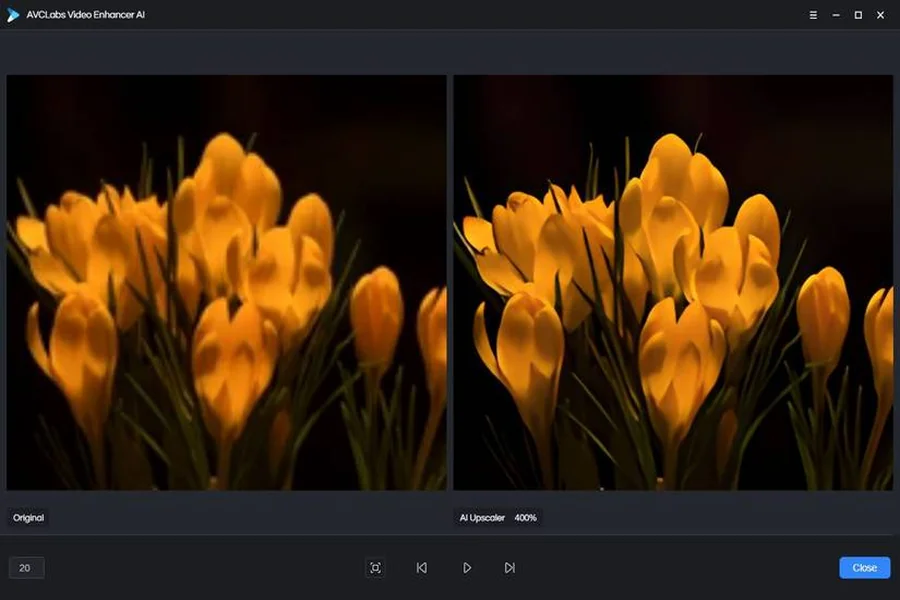
Most businesses and creators are sitting on a library of video they rarely use: phone clips from early product launches, event footage, screen recordings, old exports and soft 480p renders from their first experiments with AI. The content is often still relevant, but on today’s large, sharp screens it looks blurry and dated.
Instead of reshooting, you can refresh what you already have. Animx’s AI Video Upscaler takes the clip you have and gives you back a real 1080p file, and the same workspace lets you create brand-new shots to extend that footage. This guide explains how upscaling works, which clips benefit most and how to turn an old video into fresh content.
How AI Video Upscaling Works
Traditional upscalers enlarge existing pixels and guess at the missing detail, which often leaves the image stretched and smeared. Animx takes a different approach: it uses your clip as the base and re-renders each frame at the chosen resolution, so detail is rebuilt rather than interpolated. According to Animx, compression artifacts and noise aren’t magnified in the process.
A few points are worth knowing:
- Resolution: uploaded clips can be re-rendered at 720p or 1080p using edit models such as Wan 2.7 Edit and Happy Horse Edit. Going from 480p to 1080p means 2.25 times the resolution in each dimension, or roughly five times as many pixels.
- Shape: vertical, square and ultrawide clips keep their original aspect ratio.
- Continuity: motion, timing and composition carry over from your source.
- Regeneration: because the frames are regenerated, the result can differ from the original in fine details.
Which Clips Are Good Candidates?
Upscaling is especially useful for:
- Phone footage from events, behind-the-scenes moments or early product demos
- Old exports rendered at low resolution for platforms that have since moved on
- Screen recordings that look soft when shown full screen
- Soft AI renders from earlier tests at 480p
Be more cautious with:
- Footage that must stay unaltered, such as news, documentation or evidence, where a regenerated frame isn’t appropriate
- Close-ups of real people, where faces must remain accurate and need careful review
- Fine text, such as small captions or interface details, which should be checked frame by frame
How to Upscale a Clip, Step by Step
- Upload the clip you have. Framing, motion and timing carry over to the result.
- Describe the result you want. For a pure quality boost, try “sharpen to 1080p and keep everything else identical.”
- Choose the output resolution. Pick 720p or 1080p, keeping in mind that 1080p uses more credits.
- Review the result. Compare it with the original, paying attention to faces, text and edges.
Each render covers 4 to 15 seconds of footage, so longer videos are processed in sections and joined in an editor. Plan your cut points at natural pauses or scene changes so the joins aren’t noticeable.
Optional: Refresh the Look, Not Just the Resolution
The upscaler can also apply a look change to the whole clip while keeping its motion and timing, such as turning a daytime scene into a night scene or a cartoon-style clip into a photoreal one. That makes it possible to refresh seasonal or campaign footage without filming again. Use look changes deliberately: if the original footage is meant to show something real, such as a product or a location, keep it accurate.
Extend Old Footage With New Shots
Upscaling makes old footage sharper, but sometimes a video also needs new material, such as a fresh intro, a transition or an ending that matches today’s branding. That’s where Animx Seedance 2.5 comes in. It can start from a prompt, a single image or as many as nine references and produce one unbroken take of up to 30 seconds at up to 1080p, with ambience, effects and music created alongside the picture.
A practical approach:
- Export a still frame from your upscaled clip and use it as the first frame of a new shot, so the new footage starts where the old one leaves off.
- Add a last frame, such as a logo card or a product packshot, to end the video on your current branding.
- Attach references of the product, location or character and call them in the prompt as @Image1 to @Image9 to keep the new shots consistent.
- Create vertical versions. The upscaler keeps the original shape, so if your old footage is horizontal, generate new 9:16 shots with Seedance 2.5 for stories and reels.
Example: Refreshing a Product Launch Video
Imagine a small brand with a 480p phone video from its first product launch. The team could:
- Upscale the strongest 10 to 15 seconds to 1080p.
- Export a still of the product from the upscaled clip.
- Generate a new Seedance 2.5 shot that starts on that still and ends on today’s packshot, with soft ambient music.
- Create a vertical 9:16 version of the new shot for social media.
- Cut everything together into a short “then and now” anniversary video.
What It Costs
Animx is free to start, so you can test the upscaler on a short clip with your sign-up credits. Upscaling is part of the standard Animx plan rather than a separate subscription, and 1080p costs more credits than 720p. Seedance 2.5 is included in every paid plan: a 5-second clip at 720p uses roughly 554 credits, according to Animx, and longer or 1080p clips use more. The exact cost is always shown before you generate.
Use Old Footage Responsibly
- Make sure you own the footage or have permission to edit and republish it.
- Get consent from people who appear in old videos before reusing them in new marketing.
- Don’t present re-rendered or extended footage as an untouched original where accuracy matters.
- Label AI-enhanced or AI-generated content where platforms or local rules require it.
- Use a paid plan for ads and client work, since paid plans include commercial rights.
Final Thoughts
Old footage doesn’t have to stay in the archive. With an upscaler that rebuilds each frame at 720p or 1080p, and Seedance 2.5 for new shots that match your current look, Animx lets you turn soft, dated clips into content that holds up on today’s screens. Start with your strongest clip, upscale a short section and build from there.