
A slow or underperforming computer can make even simple tasks feel frustrating. Whether you use your PC for gaming, video editing, office work, studying, or everyday browsing, performance problems can affect your productivity and overall experience. Many people immediately think they need to buy a new computer when their system starts running slowly. However, that is not always the case.
In many situations, better PC performance can be achieved by identifying the actual cause of the problem and making a few smart improvements. Outdated drivers, hardware bottlenecks, insufficient power, unnecessary background processes, overheating, and limited storage can all affect how well a computer performs.
The good news is that you do not always need expensive upgrades to improve your system. With the right approach, you can find performance limitations, maintain your hardware, and make better decisions about future upgrades. This guide explains some of the most important ways to improve PC performance, including why drivers matter, how hardware bottlenecks affect your system, and why choosing the right power supply is essential.
Start by Understanding Your PC’s Performance
Before changing anything, it is important to understand how your computer is performing. A PC may feel slow for different reasons, and replacing the wrong component will not necessarily solve the problem.
For example, a computer with a powerful graphics card may still perform poorly if the processor cannot keep up. Similarly, adding more RAM may not solve a problem caused by a slow storage drive. In other cases, overheating may cause the CPU or GPU to reduce its speed to protect the hardware.
Start by checking the basic specifications of your system. Look at your processor, graphics card, RAM, storage device, and power supply. You should also monitor CPU and GPU usage while running the applications or games that cause performance issues.
This simple process can help you identify whether your system has a software-related problem or whether the limitation is caused by hardware.
Keep Your Drivers Updated
Drivers act as communication tools between your operating system and hardware components. Your graphics card, motherboard, network adapter, audio device, and other components rely on drivers to work correctly.
When drivers are outdated, you may experience compatibility problems, crashes, bugs, or reduced performance. New driver releases often include bug fixes, compatibility improvements, and performance optimizations. This is particularly important for gamers and people who use demanding creative applications.
For this reason, it is a good idea to regularly update drivers for important hardware components. Graphics drivers are especially important because game developers and GPU manufacturers frequently release updates designed to improve compatibility with new games and applications.
However, driver updates should be handled carefully. Installing the wrong driver or downloading drivers from unreliable websites can create additional problems. Always use trusted sources and make sure the driver matches your specific hardware and operating system.
Keeping your drivers current is not a guaranteed solution for every performance issue, but it is an important part of maintaining a healthy and reliable PC.
Check for Hardware Bottlenecks
A computer works as a complete system, and every major component contributes to overall performance. If one component is significantly slower or weaker than the others, it can limit the performance of the entire system. This is commonly known as a hardware bottleneck.
A bottleneck happens when one component cannot process information as quickly as another component sends it. For example, pairing a very powerful graphics card with an older, weaker CPU may prevent the GPU from reaching its full potential in certain games. On the other hand, a powerful processor paired with an entry-level graphics card may leave the GPU as the main performance limitation.
The impact of a bottleneck depends on the workload. A combination that works well for office tasks may not be ideal for gaming or 3D rendering. The resolution and graphics settings you use can also affect which component becomes the limiting factor.
Before purchasing a new component, using a bottleneck calculator can help you understand the potential balance between your CPU and GPU. While online calculators should not be treated as the final authority because real-world performance depends on many factors, they can provide a useful starting point when planning a PC upgrade.
The best approach is to combine calculator results with actual performance monitoring. If your CPU consistently reaches very high usage while your GPU is underutilized during a specific workload, the processor may be limiting performance. If the GPU is running at or near full capacity, upgrading the graphics card may provide a more noticeable improvement.
Choose the Right Power Supply
The power supply unit, commonly called a PSU, is one of the most important components in any desktop computer. It provides electricity to the CPU, GPU, storage drives, motherboard, and other hardware.
Choosing an unsuitable PSU can cause stability issues and may prevent your system from operating reliably. A power supply that does not provide enough capacity for your hardware can lead to unexpected shutdowns, crashes, or other problems, especially when the computer is under heavy load.
When building or upgrading a PC, it is important to consider the power requirements of all major components. The graphics card often has a significant impact on total power consumption, particularly in high-performance gaming and workstation systems.
A PSU calculator can help estimate the recommended power capacity based on your hardware configuration. You can enter information about your processor, graphics card, storage devices, and other components to get an approximate idea of your system’s power needs.
However, wattage is not the only factor that matters. The quality and reliability of the power supply are also important. A reputable PSU with appropriate protections and suitable efficiency is generally a better choice than a low-quality unit with a higher advertised wattage.
It is also wise to leave some headroom rather than selecting a power supply that operates at its maximum capacity all the time. Extra capacity can be useful if you plan to upgrade your hardware later.
Monitor Your CPU and GPU Usage
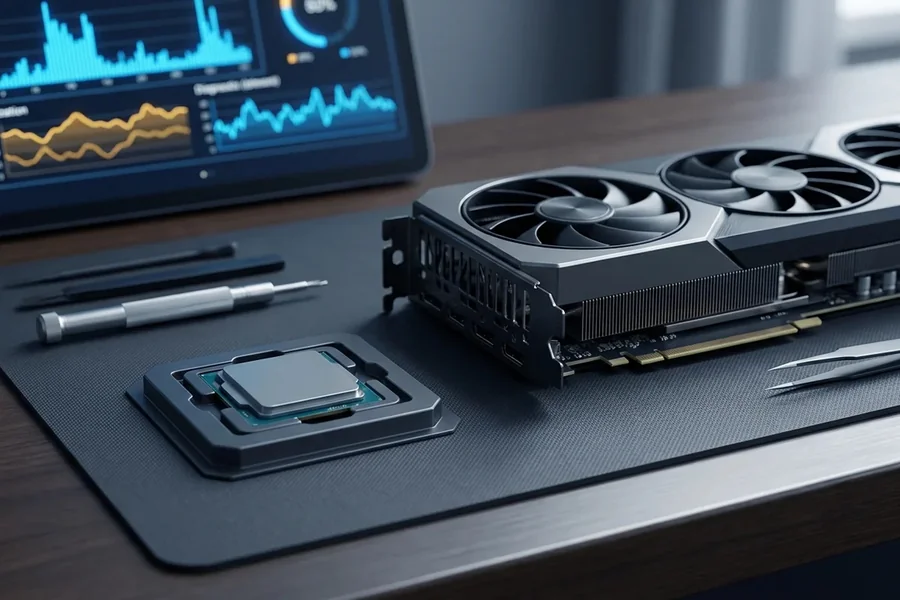
Performance monitoring can provide valuable information about what is happening inside your PC. Modern operating systems and hardware monitoring tools allow users to check CPU usage, GPU usage, memory consumption, temperatures, and other information.
If your CPU is consistently operating at very high usage while your GPU is barely being used, the CPU may be limiting your performance. If the opposite happens, the GPU may be the main limitation.
Monitoring temperatures is equally important. High temperatures can cause thermal throttling, where a component automatically reduces its operating speed to prevent overheating. This can lead to sudden drops in performance.
If temperatures are too high, check whether your computer has adequate airflow. Clean dust from fans and filters, make sure air vents are not blocked, and confirm that your cooling system is working properly. In some cases, replacing thermal paste or improving the cooling setup may also help.
Free Up Storage Space
Storage can also affect the overall experience of using a computer. If your main drive is nearly full, the system may have less space available for temporary files and other operations.
Start by removing applications you no longer use and deleting unnecessary files. You can also move large personal files, such as videos and photos, to another drive or external storage.
If your computer still uses an older mechanical hard drive as its primary storage device, upgrading to a solid-state drive can make a noticeable difference in everyday responsiveness. An SSD can significantly improve boot times, application loading, and file access compared with traditional hard drives.
However, storage upgrades should be based on your actual needs. If you already have a fast SSD and plenty of free space, upgrading storage may not solve a performance problem caused by another component.
Manage Startup and Background Applications
Many applications automatically launch when Windows starts. While some startup programs are useful, others may unnecessarily consume system resources.
Review your startup applications and disable programs that you do not need to run immediately after booting. You should also check which applications are running in the background and consuming CPU, RAM, or network resources.
This does not mean you should disable every background process. Some are required for Windows or other software to function correctly. Instead, focus on programs you recognize and no longer need running continuously.
Reducing unnecessary background activity can help free system resources and make your computer feel more responsive.
Consider a RAM Upgrade
RAM, or system memory, plays an important role in multitasking. If your computer frequently runs out of available memory, applications may become slower, and the system may rely more heavily on storage for temporary data.
The amount of RAM you need depends on how you use your PC. Basic web browsing and office work generally require less memory than gaming, video editing, 3D design, or professional workloads.
Before purchasing additional RAM, check your motherboard’s compatibility, supported memory type, maximum capacity, and available slots. Installing compatible memory is important for stable operation.
More RAM is not always the answer, though. If your system already has enough memory for your typical workload, adding more may provide little noticeable improvement. Identifying your actual performance limitation should come first.
Keep Your PC Cool and Clean
Dust buildup can reduce airflow and cause components to run hotter. Over time, excessive heat can affect performance and potentially shorten the lifespan of hardware.
Regularly cleaning your PC can help maintain proper airflow. Make sure fans are free from excessive dust and that air intake and exhaust areas remain unobstructed.
Your computer’s physical environment also matters. Avoid placing a desktop inside a tightly enclosed space where hot air cannot escape. Laptops should be used on stable surfaces that do not block their ventilation openings.
Good cooling is especially important for systems with high-performance CPUs and GPUs because these components can generate significant heat under heavy workloads.
Upgrade Strategically Instead of Replacing Everything
When a PC becomes slow, some users assume they need to replace the entire system. In reality, a targeted upgrade may be enough.
The key is identifying the component that is limiting your experience. If your storage is slow, an SSD upgrade may help. If you regularly run out of memory, adding RAM could be useful. If gaming performance is limited by your graphics card, a GPU upgrade may be more appropriate.
Similarly, if a CPU-GPU combination is unbalanced, upgrading the weaker component may provide better value than replacing multiple parts.
Tools such as a bottleneck calculator and PSU calculator can help during the planning stage. However, they should be used alongside real-world performance monitoring and the specifications provided by hardware manufacturers.
Final Thoughts
Improving PC performance does not always require spending a large amount of money. The first step is understanding why your computer is struggling. Outdated drivers, hardware bottlenecks, insufficient power, overheating, storage limitations, and unnecessary background applications can all contribute to poor performance.
Start with simple maintenance. Keep important drivers updated, remove unnecessary software, monitor system temperatures, and maintain sufficient free storage space. If you are planning a hardware upgrade, identify your current bottleneck before purchasing new components.
Using tools to update drivers, evaluate hardware balance with a bottleneck calculator, and estimate power requirements through a PSU calculator can make the troubleshooting and upgrade process easier. More importantly, combine these tools with actual system monitoring and reliable hardware information.
A well-maintained PC can deliver better performance, improved stability, and a longer useful life. Instead of upgrading blindly, take the time to understand your system first. A thoughtful approach can help you spend your money wisely and get the best possible performance from the hardware you already own.